Organization settings
Hover your picture at the bottom left and click Organization. Owners see every tab; admins and viewers see fewer.
| Tab | What it's for | Who |
|---|---|---|
| General | The firm's name, profile and branding, and Matilda updates | Everyone sees it; admins rename; owners do the rest |
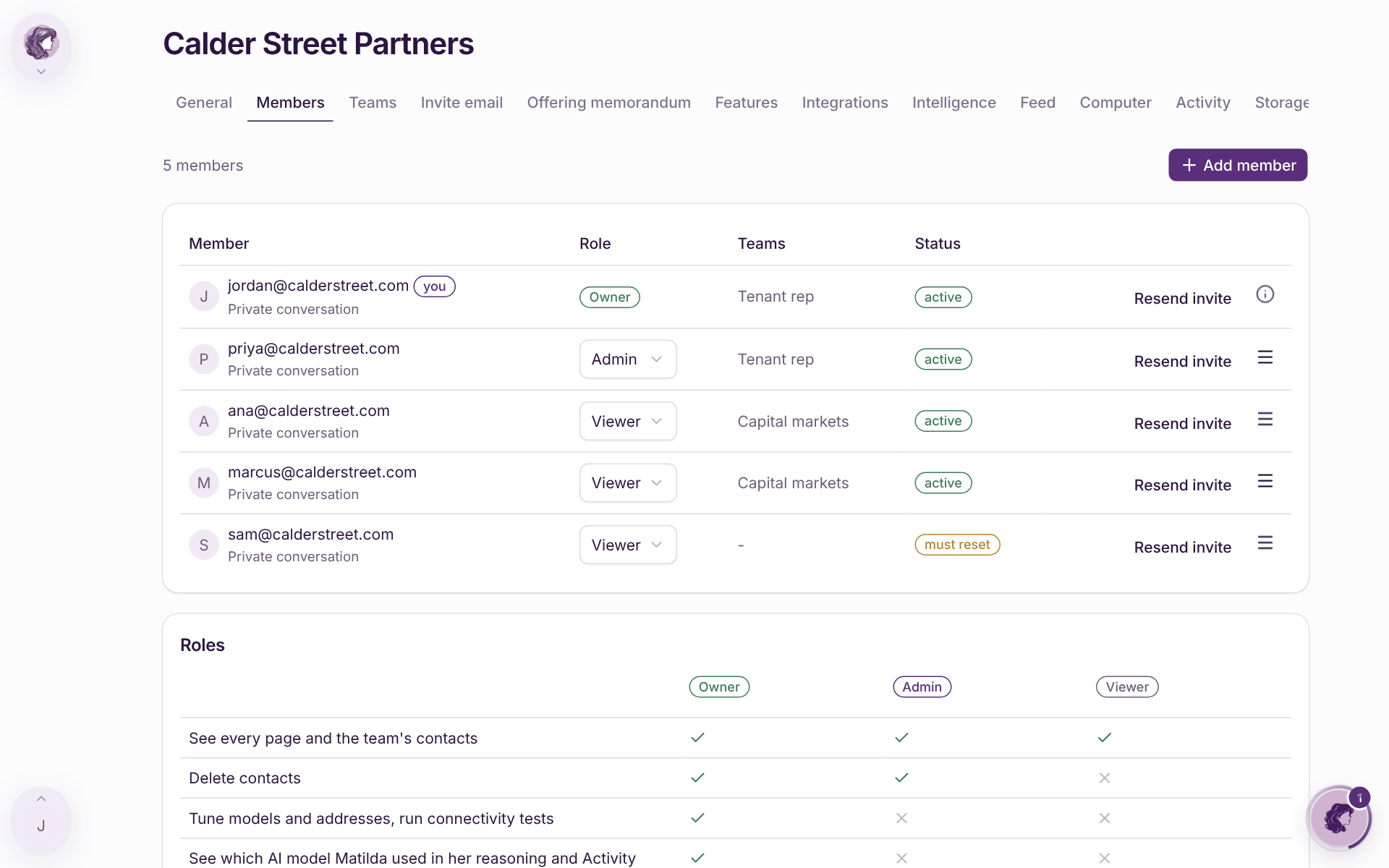
| Members | Add people, change roles, resend invites. How to | Everyone sees it; admins and owners act |
| Teams | Labels like Tenant rep. They don't limit what anyone sees. | Everyone sees it; admins and owners act |
| Invite email | The email new members get | Owners |
| Offering memorandum | The layout of every OM | Everyone previews; owners edit |
| Features | What the team sees | Owners |
| Integrations | Channels, apps and data. Channels, apps | Owners |
| Intelligence | The AI provider, models and spend. More | Owners |
| Feed | The hourly check, quiet hours, email monitoring and the morning brief | Owners |
| Computer | Matilda's own computer, for tasks in a browser | Owners |
| Activity | Who changed what in the workspace, and when | Admins, owners |
| Storage | What Matilda keeps on disk, by member | Owners |
| Database | A read-only map of Matilda's data | Owners |
General
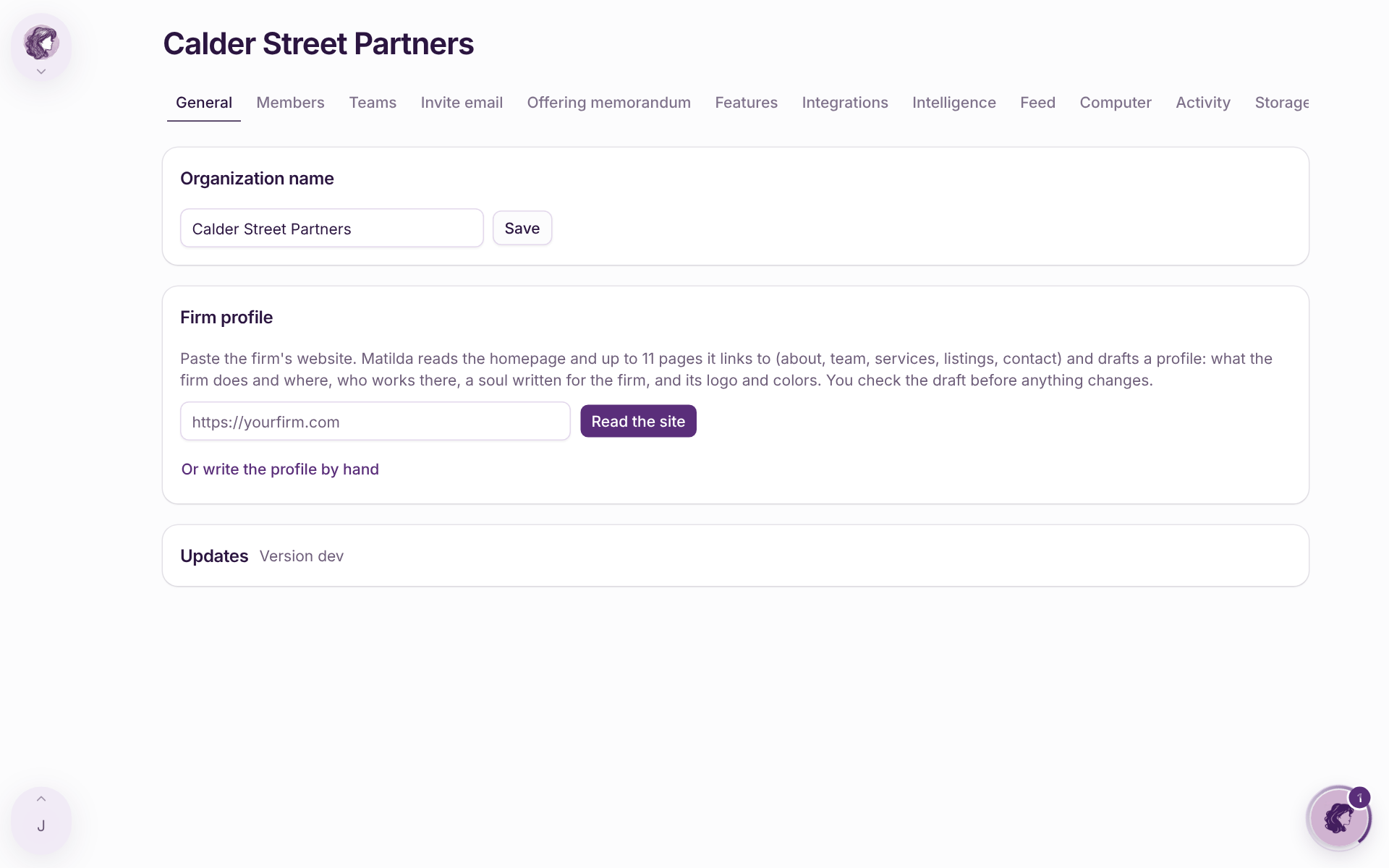
- Organization name. Admins and owners can change it.
- Firm profile. Paste your website and click Read the site. Matilda reads the homepage and up to 11 linked pages and drafts a profile: what the firm does, markets, asset types, services, and the people on the site. Check the draft, tick what to keep, then Apply. Nothing changes until you do. Read the site again, Edit or Forget profile later.
- Branding. From the same draft: use the firm's logo in the sidebar, on the sign-in page and in emails, and make a color scheme from your color. Members can still pick their own look on Profile. Reset branding goes back to Matilda's.
- Updates. See below.
Features
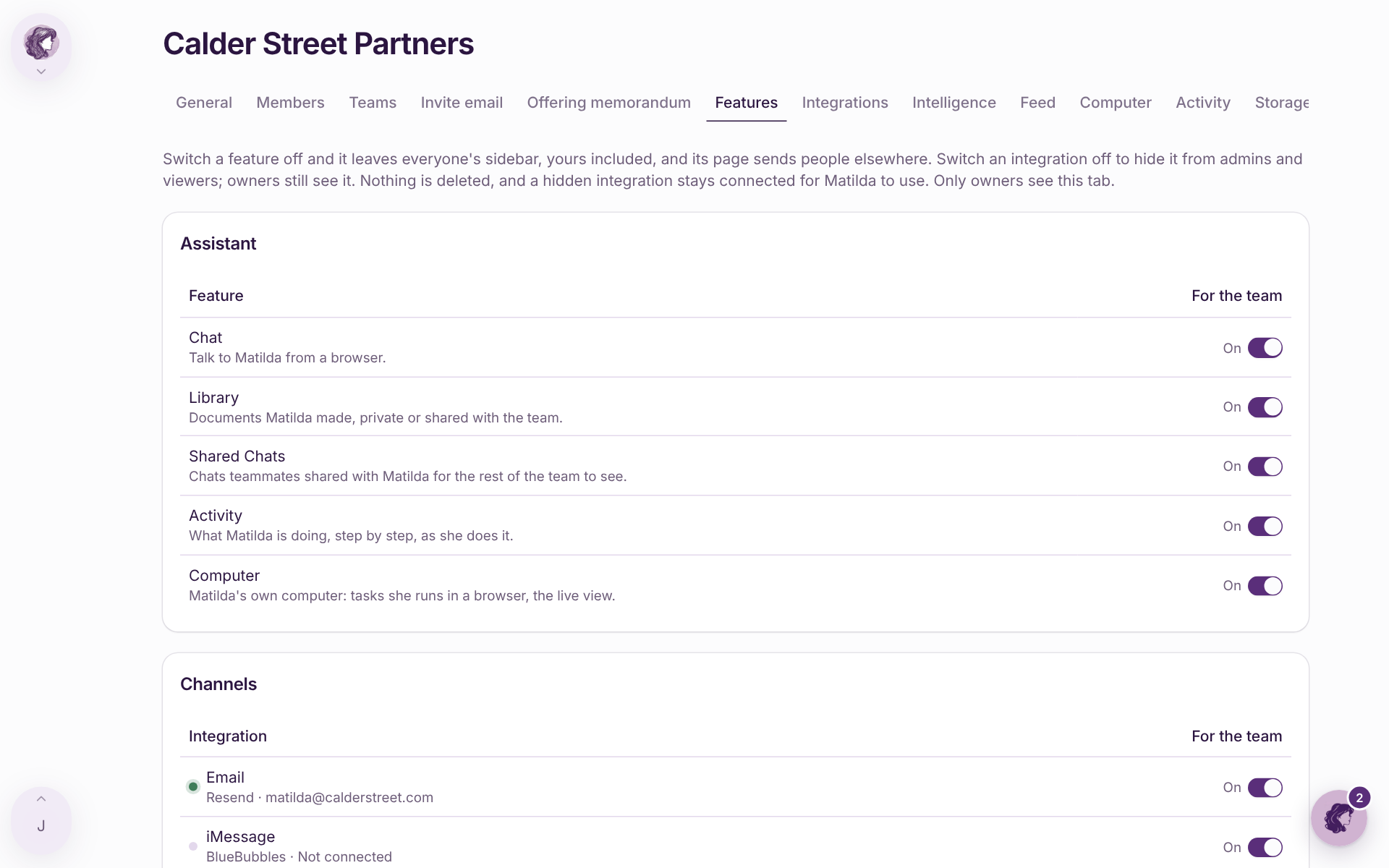
Switch Chat, Library, Shared Chats, Activity or Computer off and it leaves everyone's menu, yours included. Switch an integration off to hide it from admins and viewers; it stays connected for Matilda. Nothing is deleted.
Feed
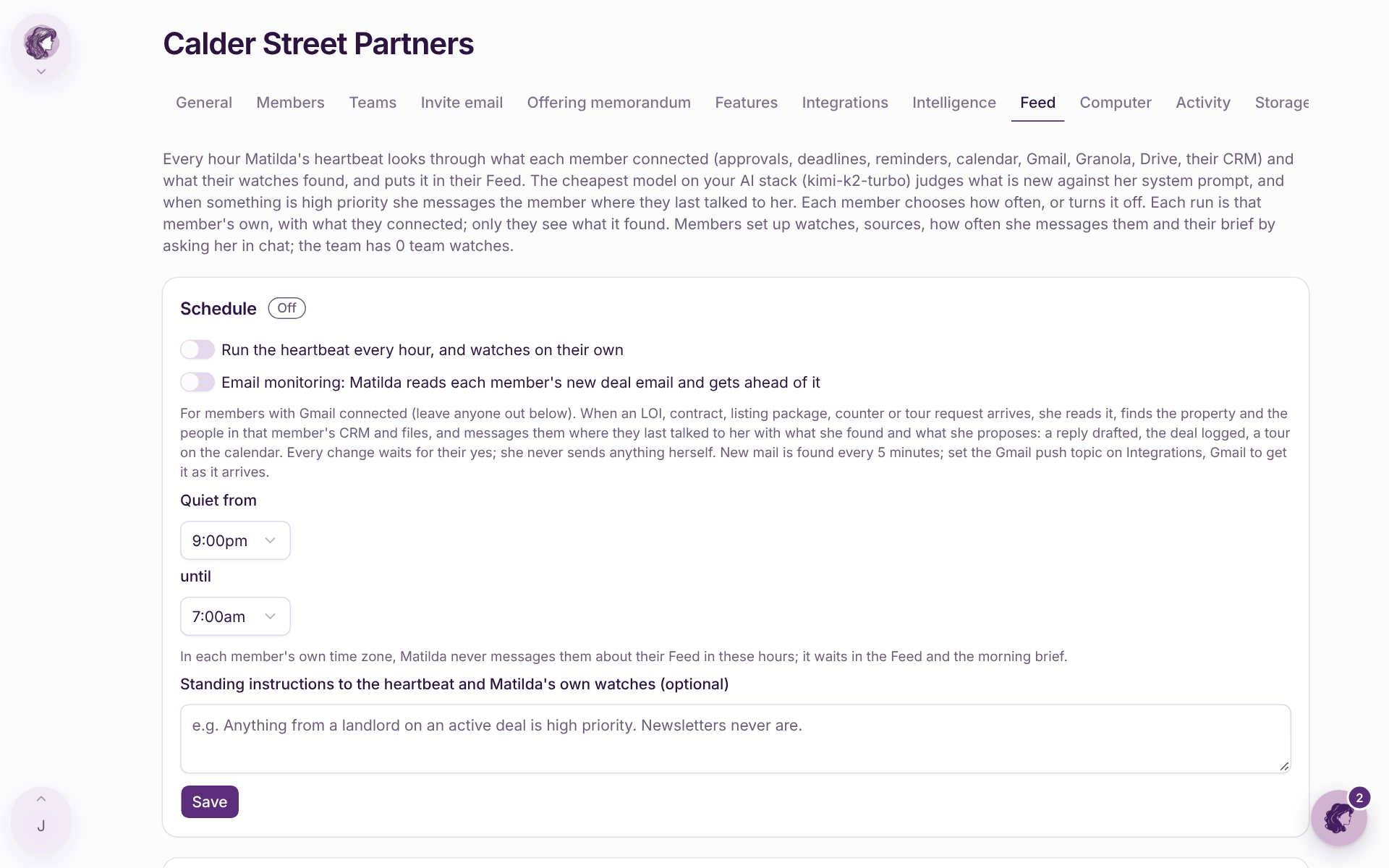
One tab for everything Matilda does in the background. All of it is off until you turn it on.
| Setting | What it does |
|---|---|
| Run the heartbeat every hour | Fills each member's Feed hourly and runs their watches on their own schedules. |
| Email monitoring | Matilda reads each member's new deal email and gets ahead of it. She never sends. |
| Quiet from / until | When she won't message anyone. 9 PM to 7 AM by default, in each member's own time zone. |
| Standing instructions | A note she follows on every check, like "Flag anything from Harbor Realty." |
| Send the morning brief | The team's morning brief: time (7:30 AM), days (weekdays), most items (7), and its own standing instructions. |
- The Members table shows each person's last run, with Check now for one or everyone, and Leave out to keep someone's email out of monitoring.
- Briefs by member has Send now and Send to everyone now.
- You see that runs happened and whether she messaged. You never see what's in a member's Feed or brief.
Offering memorandum
The layout Matilda uses for every OM. The logo and accent color come from your branding.
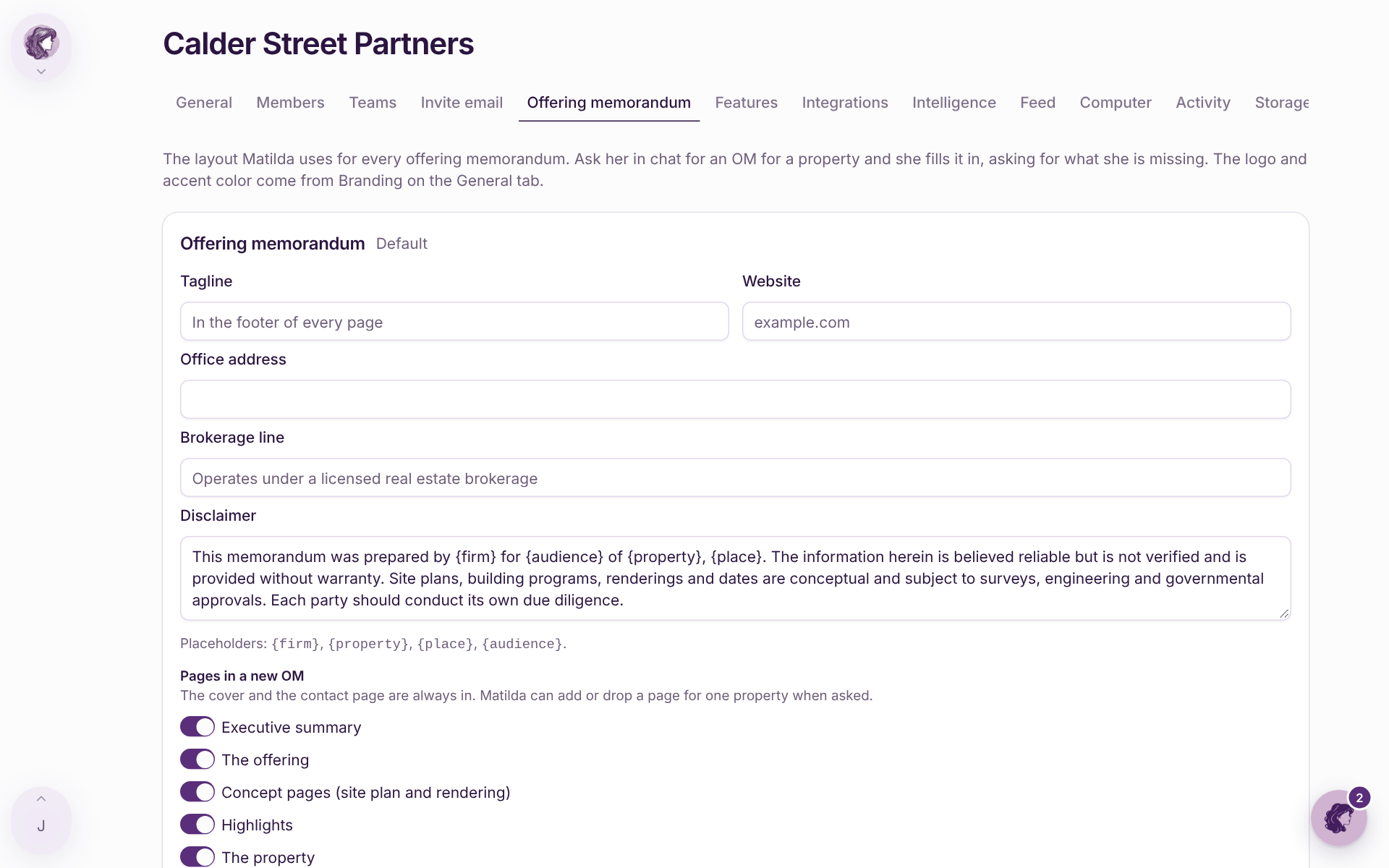
- The firm's lines: tagline, website, office address, brokerage line and disclaimer.
- Pages in a new OM: switch on or off the executive summary, the offering, concept pages, highlights, the property, permitted uses, and location and map. The cover and contact page are always in.
- Brokers on the contact page: up to four, each with a phone.
- Sample PDF and the live preview show it with a sample property. Everyone on the team can see those.
Invite email
Change the subject and message. Placeholders like {{org_name}}, {{inviter_name}}, {{member_email}} and {{expiry_days}} fill in per person; the Get started button, sign-in details and expiry are always added. The preview updates as you type. Send me a test shows it in your inbox, and Reset to default starts over.
Computer
Sets up Matilda's computer.
-
Under Hosts, click Add a computer host and run the install command it shows on the machine. It prints a six-digit code.
-
Approve the host when it appears.
-
Under Settings, switch on Members can ask Matilda to use her computer.
Also here: a team computer with shared logins (every change on it waits for a yes), who may use it, how many desktops run at once, time and step limits per task, and whether owners may watch members' tasks. Stop all ends everything running.
Storage
What Matilda keeps on disk for your workspace: the Library, chat uploads (kept a week), working folders (cleared after three days), and conversations. A ring shows how full it is against your allowance (10 GB by default; change it here). By member breaks it down so you can see who's using what. Members see the same ring on their Library.
Updates
On General → Updates:
- Auto-update installs new releases by themselves, usually within 20 minutes of coming out. A release that doesn't come up healthy is undone and isn't retried.
- With auto-update off, click Install update when one is ready. Matilda restarts in about a minute. Requests sent during the restart are answered afterwards.
- Releases lists past versions with Roll back.
See What's new for what changed.