Install the Matilda Worker
The Matilda Worker is a small Mac app that lives in your menu bar. It reads the iMessage conversations on your Mac, and when you mark one as a prospect it streams that thread to Matilda, which fills in the matching person in Follow Up Boss. This tutorial installs the app, connects it, and syncs a first conversation. It takes about five minutes.
Prerequisites
- A Mac with Apple silicon running macOS 13 or later, signed in to iMessage. If you text leads from your iPhone, turn on Messages in iCloud so those threads reach the Mac.
- Your own Follow Up Boss login. This is the only sign-in the worker uses. You do not need a Matilda dashboard account.
- Your Matilda workspace must have Follow Up Boss sign-in enabled. If Connect Follow Up Boss reports an error in step 3, ask your Matilda owner to check the Follow Up Boss integration.
1. Download and install
- Download the installer from matildahq.com/download/mac.
- Open MatildaWorker.pkg and click through the installer. It puts Matilda Worker in Applications and launches it.
The app has no Dock icon. Look for the Matilda logo in the menu bar at the top right of the screen. On first launch a setup window opens on its own.
2. Welcome
The first screen explains what the app does. Click Continue.
3. Connect Follow Up Boss
This is the step that connects the Mac to Matilda.
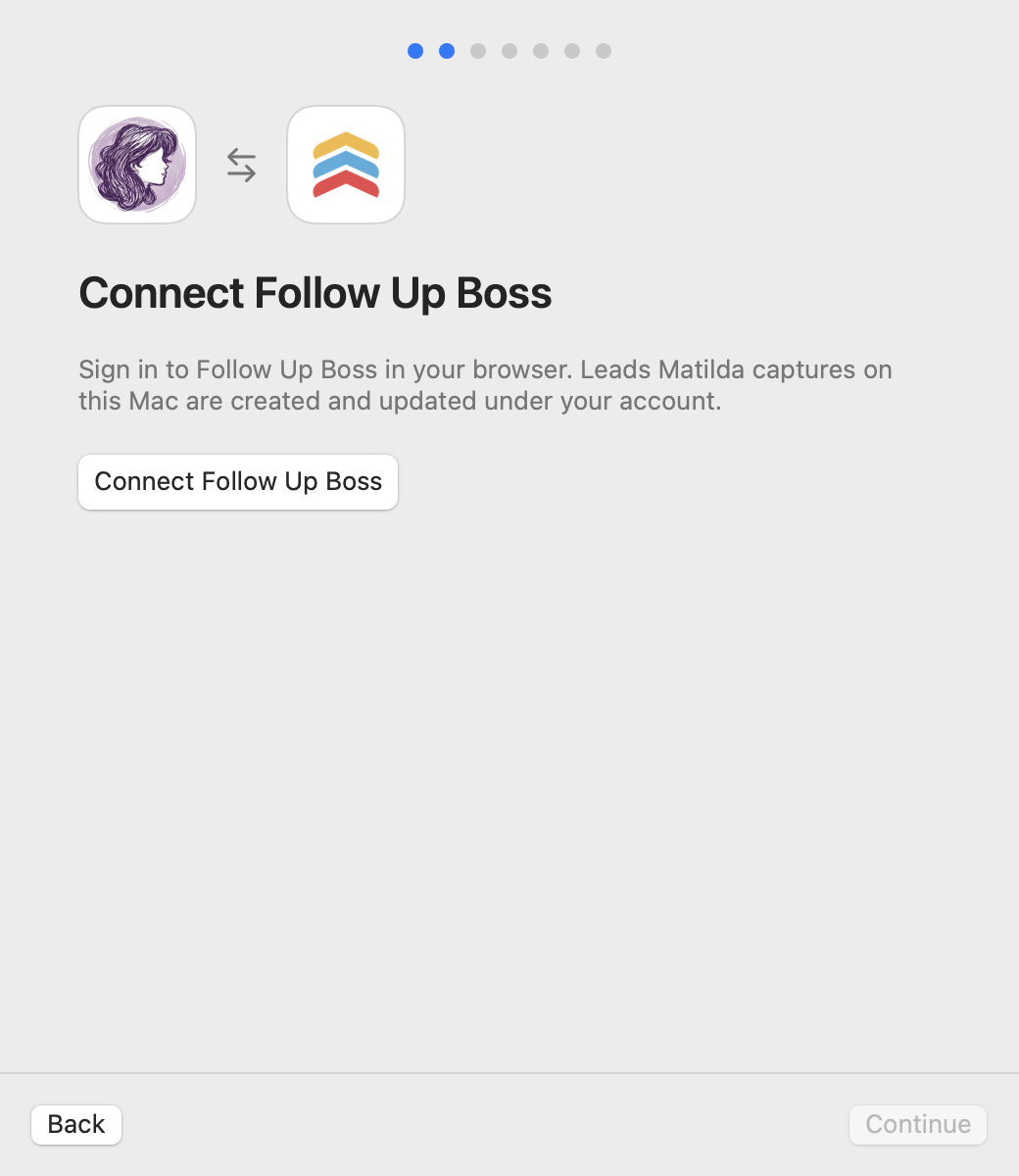
- Click Connect Follow Up Boss. Your browser opens on Follow Up Boss.
- Sign in with your own Follow Up Boss login and approve access.
- The browser hands you back to the app. If it asks whether to open Matilda Worker, allow it.
The setup window shows Connected as followed by your name and account, and Continue becomes available. From now on, leads this Mac picks up are created and updated in Follow Up Boss under your login.
The browser link is valid for 15 minutes. If it expires, or you closed the tab, click Cancel in the setup window and then Connect Follow Up Boss again.
4. Grant Full Disk Access
macOS keeps iMessage history in a protected file, so the worker needs Full Disk Access to read it. The setup window plays a short animation of these steps:
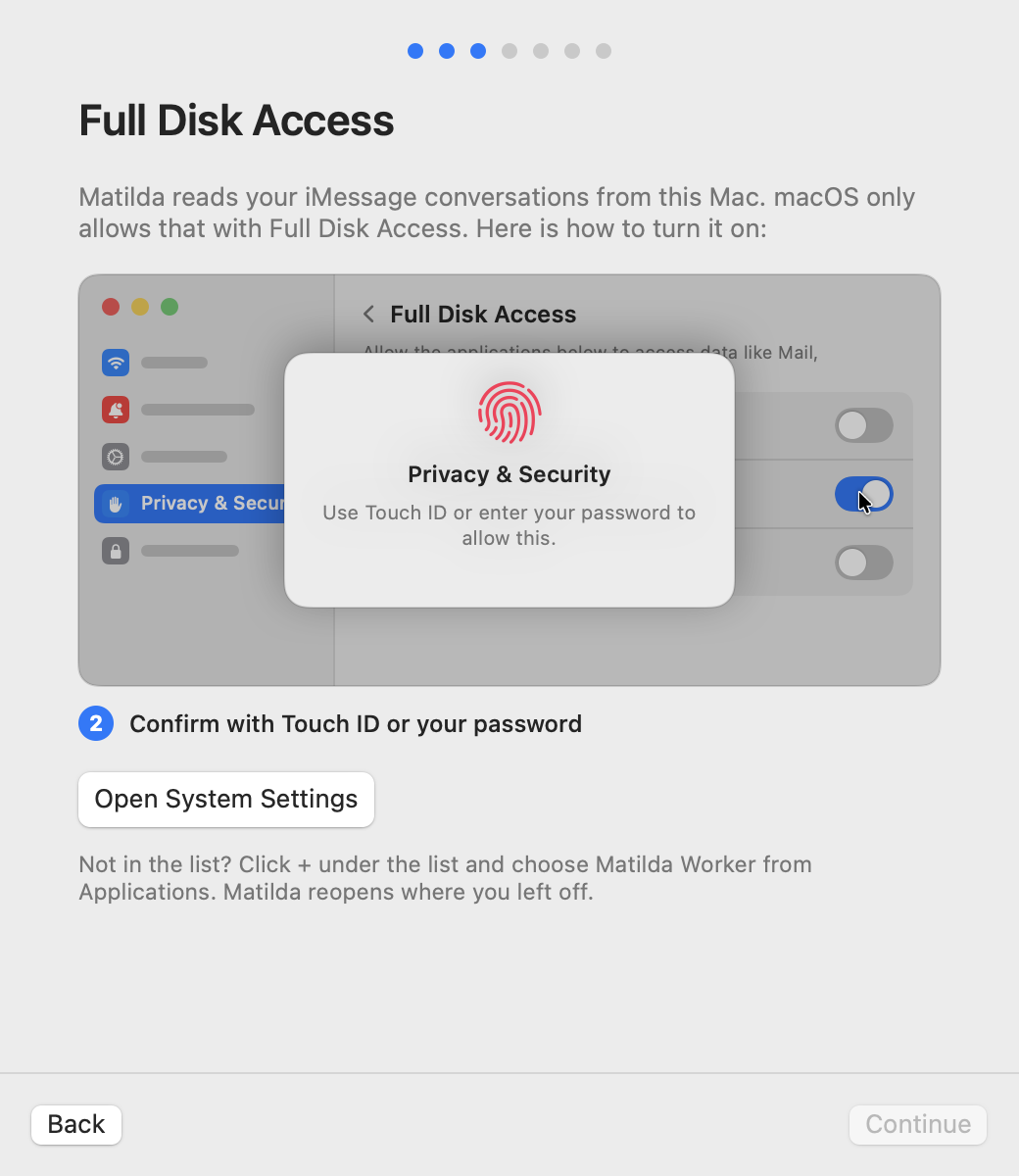
- Click Open System Settings. It opens Privacy & Security, then Full Disk Access.
- Find Matilda Worker in the list and turn it on. If it is not listed, click + under the list and choose Matilda Worker from Applications.
- Confirm with Touch ID or your password.
- macOS offers Quit & Reopen. Click it.
The worker reopens where you left off and moves on by itself once it sees the permission.
5. Allow Contacts (optional)
Click Allow access and approve the prompt so conversations show people's names instead of phone numbers. Names never leave the Mac unless that conversation is synced. Click Skip if you would rather not.
6. Choose how you start syncing
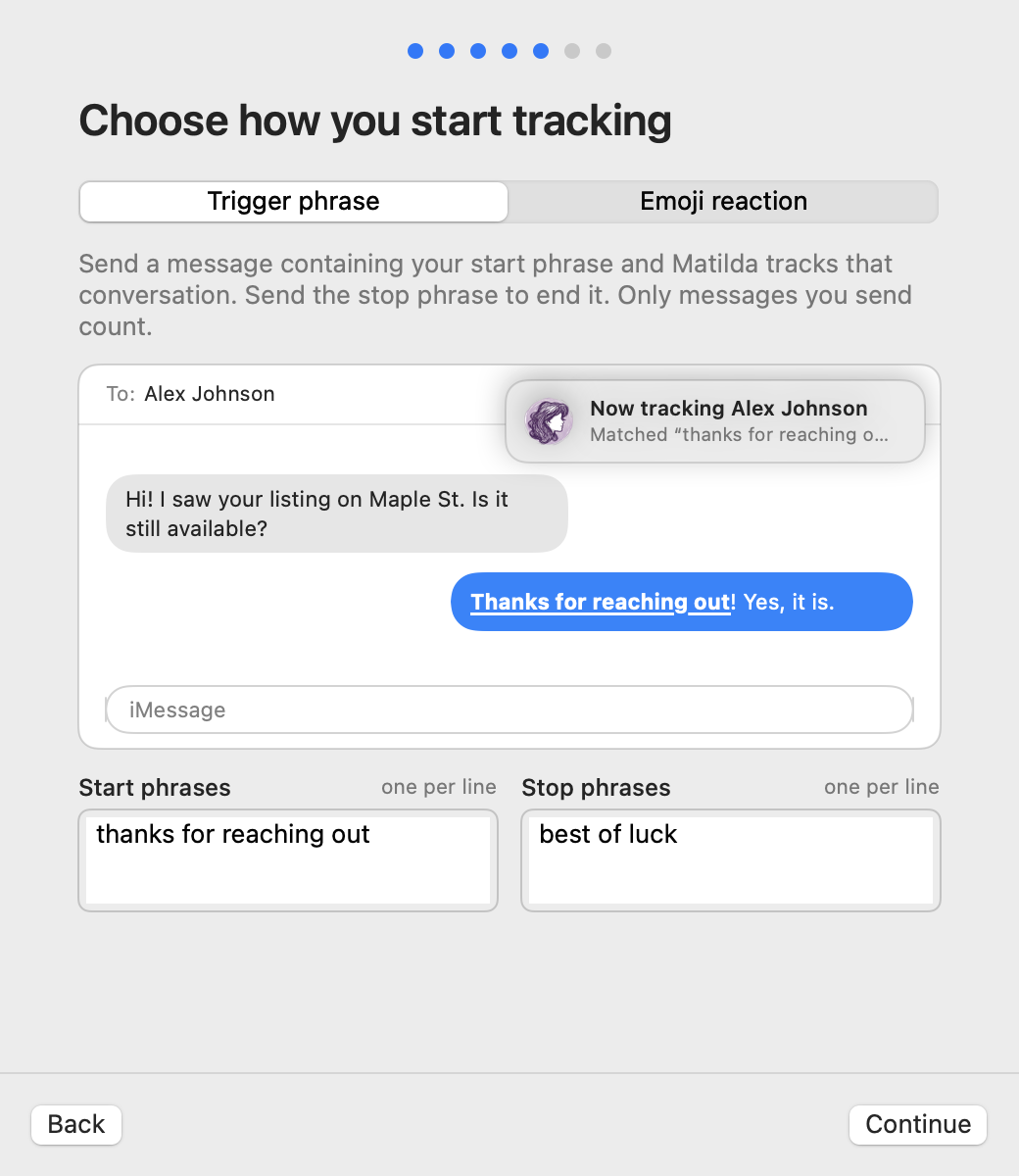
Nothing is synced until you say so. Pick one hands-free way to mark a conversation:
| Method | To start syncing | To stop syncing |
|---|---|---|
| Trigger phrase | Send a message containing a start phrase. The default is thanks for reaching out. | Send a stop phrase. The default is best of luck. |
| Emoji reaction | React to any message in the thread with the start emoji. The default is 🏠. | React with the stop emoji. The default is 🏡. |
Edit the phrases or emoji to match how you already text. Pick an opener you send to every new lead and marking costs nothing extra. Only messages and reactions you send count, so a lead can never start syncing by accident. Whichever method you pick, you can always press play next to a conversation in the menu instead.
7. Start at login
Leave Start Matilda Worker at login on. The worker only syncs while it is running.
8. Finish
Click Finish. The menu-bar dropdown opens once so you can see it.
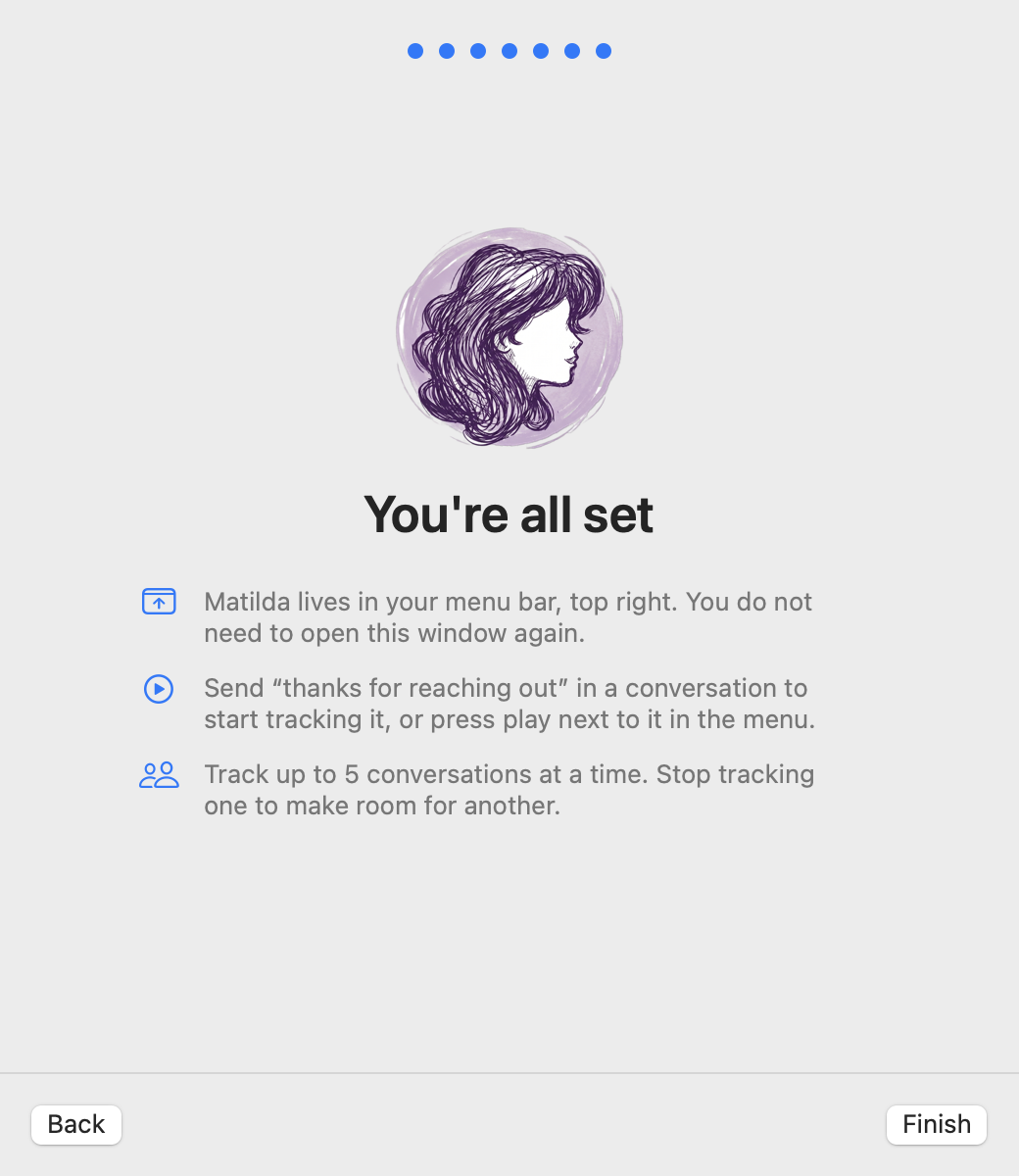
9. Sync your first conversation
- In Messages, open a one-to-one conversation with a lead and send your start phrase, or react with your start emoji. You can do this from your iPhone as well.
- Within a couple of seconds a Now syncing notification appears, with a Stop syncing button in case it was a mistake.
- Click the Matilda logo in the menu bar. The conversation shows a green stop button, and the counter at the top right reads 1 of 5 syncing.
- Switch to the Activity tab. The worker sends the last few messages of the thread right away, so within a few seconds you will see the fields Matilda captured, such as budget or timeline, and whether the lead reached Follow Up Boss.
- Open the person in Follow Up Boss. The details from the conversation are filled in, along with a Matilda tag.
When a conversation is finished, send your stop phrase, react with your stop emoji, or press the stop button to free the slot.
Confirm it on the dashboard
If you have a dashboard account, open Devices. Your Mac appears with an online pill, a Follow Up Boss connected pill, your name, and how many conversations it is syncing.
If something goes wrong
| Symptom | What to do |
|---|---|
| The browser did not return to the app | Make sure the app is still running, then click Connect Follow Up Boss again. |
| "This link has expired" in the browser | Click Connect Follow Up Boss again for a fresh link. |
| The conversation list is empty | Full Disk Access is missing, or the app was not reopened after granting it. Right-click the menu-bar logo, open Settings…, and check Permissions. |
| A trigger did nothing | Check the message came from you, in a one-to-one thread with a phone number (not a group, not an email-only contact), and that the method you chose in step 6 matches what you did. |
| "Sync limit reached" | The Mac is already syncing its maximum. Stop a conversation, or ask an Owner to raise the limit on the Devices page. |
| A Reconnect banner appears | Your Follow Up Boss connection expired. Click Reconnect and sign in again. |
Next steps
- Matilda Worker reference for triggers, limits, settings, and privacy in detail
- Devices to see and manage connected Macs
- Follow Up Boss reference for what gets written to the CRM